

Introduction:
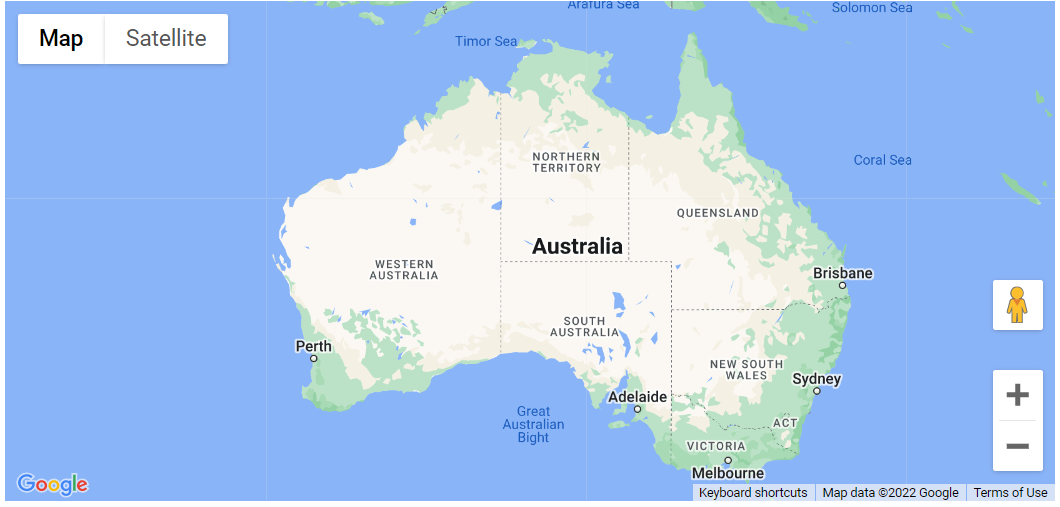
In this tutorial we will learn how to access arguments in UI events. Below example helps to create a map that the user can click to create a marker at the clicked point.
UI events in the Maps JavaScript API normally send an event parameter, which the event listener can use to determine the UI state at the time the event happened. A UI ‘click’ event, for example, normally transmits a MouseEvent with a latLng attribute indicating the clicked position on the map. This is specific to UI events; MVC state changes do not pass arguments in their events.
Within an event listener, you may access the event’s parameters in the same manner that you would access the attributes of an object. The following example adds an event listener to the map and places a marker at the clicked location when the user clicks on the map.
Code:
function initMap(): void {
  const map = new google.maps.Map(
    document.getElementById("map") as HTMLElement,
    {
      zoom: 4,
      center: { lat: -25.363882, lng: 131.044922 },
    }
  );

  map.addListener("click", (e) => {
    placeMarkerAndPanTo(e.latLng, map);
  });
}

function placeMarkerAndPanTo(latLng: google.maps.LatLng, map: google.maps.Map) {
  new google.maps.Marker({
    position: latLng,
    map: map,
  });
  map.panTo(latLng);
}

declare global {
  interface Window {
    initMap: () => void;
  }
}
window.initMap = initMap;
export {};
Explanation:
- The function initMap() is created and it consists of the map properties.
- The ‘centre’ attribute defines where the map should be centered with the help of the latitude and longitude coordinates.
center: { lat: -25.363882, lng: 131.044922 },
- The ‘zoom’ attribute specifies the map’s zoom level.
zoom: 4,
- The line, “map = new google.maps.Map(document.getElementById(“map”)”; creates a new map inside the <div> element with the help of the mentioned id which is ‘map’ as an HTMLElement.
const map = new google.maps.Map(
    document.getElementById("map") as HTMLElement,
- Next, we add the addListener(), click and call placeMarkerAndPanTo().
map.addListener("click", (e) => {
    placeMarkerAndPanTo(e.latLng, map);
  });
}
- placeMarkerAndPanTo is defined with the position and the map.
function placeMarkerAndPanTo(latLng: google.maps.LatLng, map: google.maps.Map) {
  new google.maps.Marker({
    position: latLng,
    map: map,
  });
  map.panTo(latLng);
}
- Next, we create a new marker on the map.
- Lastly, the function is called and executed.
window.initMap = initMap;
Conclusion:
Thus, in this tutorial we learned to access the arguments in UI Events. Also, we saw an example to create a map that the user can click to create a marker at the clicked point.

Recent Posts
Loading recent posts...